Internet Cleanup
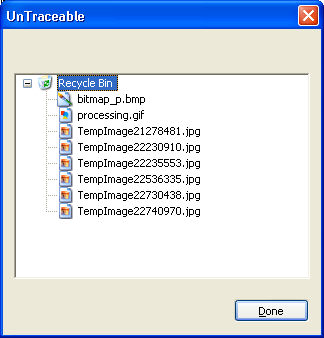
The Internet Cleanup Form
provides an option for automatically starting UnTraceable when Windows
starts. This option allows a user to have UnTraceable start without user
interaction.
The first
options in the form are Auto Complete settings. The settings allow you
to specify whether you want Internet Explorer to auto complete your entries
as you type. For example, if you previously visited www.microsoft.com,
when you enter the first letters of it (www.m) in your address bar, the
full address will be displayed allowing you to select it instead of typing
in the full address.
The main purpose of the Internet Cleanup screen
is to manage information for History, Internet Cache, Recent Documents,
Recycle Bin and Temporary Files. Options are provide for clearing items
upon exit, by schedule or real-time. The options are at the bottom of
the screen and are specific to the item selected in the item list (History,
Internet Cache, etc.). The options are as follows:
 | Clear on Exit: Clears
the selected item upon exit. |
| Use Scheduler: Enables
the Schedule button |
| Clear Real-time:
Clears the item automatically. For example, if this item is selected for
History, the History will be cleared automatically in Real-time without
interaction from the user. |
| Clear Now: Clears the
selected item now |
| Schedule: Displays
the Schedule screen. The Schedule screen allows the user to schedule the
ongoing clearing of the selected item at a selected times. |
| View: Displays the
information for the selected item. An example of the dialog that displays
the items for the selection is displayed at the end of this help topic.
|
The status for each item
is shown to the right of it in the list. This includes option selection,
scheduling and the number of it’s recent items. The items available are
History, Internet Cache, Recent Documents, Recycle Bin and Temporary Cache.
The options for each item become available when the item is selected in
the list. A description for each item is listed below.
| History:
A list of previously visted Web sites. The options for History include
Real-time, Scheduled, on Exit and Clear Now. These options clear the History
without requiring Windows to reboot. At this time, UnTraceable is the
only application that will clear the History Real-time. Other programs
claiming to clear the History either try to overwrite protected files
used by Internet Explorer or require the user to restart Windows. The
current History items can be viewed by selecting the “View” button when
the History item is selected. |
| Internet
Cache: Web pages, bitmaps and other files downloaded when a
web page is visited. The options for Internet Cache include Real-time,
Scheduled, on Exit and Clear Now. The current Internet Cache items can
be viewed by selecting the “View” button when the Internet Cache item
is selected. |
| Recent Documents:
A list of opened or saved documents on your computer. The options for
Recent Documents include Real-time, Scheduled, on Exit and Clear Now.
The current Recent Documents items can be viewed by selecting the “View”
button when the History item is selected. |
| Recycle Bin: Files
stored in the Recycle Bin that were previously deleted. The options for
Recent Documents include Scheduled, on Exit and Clear Now. The Real-time
clearing option is not available for the Recycle Bin. |
| Temporary Files: A
location used by the Windows operating system and other programs for temporary
storage. Files stored here are usually files no longer need, but were
never deleted. The options for Temporary Files include Scheduled, on Exit
and Clear Now. The Real-time clearing option is not available for the
Temporary Files. |
Note: Although you can clear the Internet Cache
in Real-time, it slows down your computer when browsing the web. It is
recommend to use the Schedule feature or the On Exit option. If you are
going to purchase something online, you will need to disable the Real-time
option until you complete your purchase. Once you are finished you can
set your previously selected options. The reason is that the site you
are purchasing from maintains information while you are shopping, if these
selections are not turned off, the data needed for the purchase will be
deleted.
Displayed below the
item list is the Schedule for the currently selected item. The Schedule
display includes the Last Scheduled Clearing, Next Scheduled Clearing
and Clearing Frequency (hour, day, week, etc.) . Schedules are created
and managed by selecting the "Schedule" button. If the "Schedule"
button is disabled, selecting the "Use Scheduler" checkbox will
enable it.
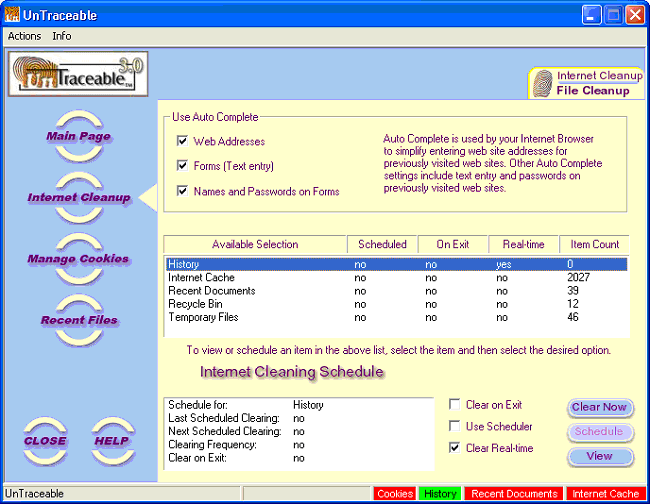
View dialog for displaying
the items associated with selection