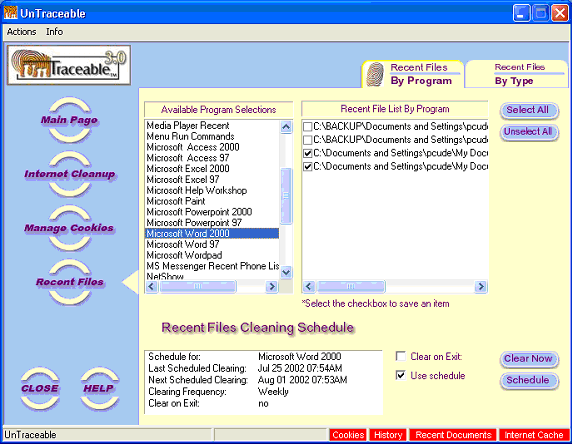
Recent Files By Program
When selecting the "Recent
Files" option button, this form is display with two tabs above it.
The tabs are Recent Files - By Program and Recent
Files - By Type. The selected page is identified by the fingerprint
image on the pages tab. The default tab is the Recent Files - By Program
and it will be displayed when the "Recent Files" option button
is selected.
On the Recent Files
By Program tab, there is a list of installed programs that maintain lists
of previously opened files. This includes Window specific items such as
“Typed Url's” and many other applications such as Real Player, MS Media
Player, MS Office, etc. The Recent Files window has two list displays;
a list display of programs installed on your computer that maintain recent
file lists and a second list display that shows the recent list for the
currently selected program. The program list display is on the left and
the recent file list display for the currently select program is on the
right. If a program is not installed on your computer, it will not show
up in the program list display. You can save any of the items in the recent
file list by selecting the checkbox next to the item. The options for
the Recent Files screen is as follows:
Options are provide for
clearing Recent Files at the current time, upon exit or by schedule are
available. The options are as follows:
 | Clear on Exit: Clears
the recent files list for the selected program upon exit. |
| Use Scheduler: Enables
the Schedule button |
| Clear Now: Clears the
recent files list for the selected program now |
| Schedule: Displays
the Schedule screen. The Schedule screen allows the user to schedule the
ongoing clearing of the recent files list for the selected program at
a selected times. |
Displayed below the
display lists is the Schedule for the currently selected program.
The Schedule display includes the Last Scheduled Clearing, Next Scheduled
Clearing and Clearing Frequency (hour, day, week, etc.) . Schedules are
created and managed by selecting the "Schedule" button. If the
"Schedule" button is disabled, selecting the "Use Scheduler"
checkbox will enable it.